Guide
Using Lambrary
Lambrary gives your named LAMBDA functions the things Excel gives its built-in functions and then forgets to give yours: a signature tooltip, per-parameter descriptions, allowed-value pickers, and one place to write and keep that documentation. Here's what it does, a first session start to finish, and the details.
What Lambrary is
Excel's LAMBDA lets you write a reusable function in the formula bar and give it a name. It's a genuine addition to what a spreadsheet can do: your own functions, sitting alongside SUM and XLOOKUP. But a named LAMBDA is a black box to everyone who uses it, including you three months from now. Type =MYFUNC( and Excel tells you nothing: no parameter names, no description, no hint about what goes where. The built-in functions get a tooltip; yours get silence.
I built Lambrary to close that gap. With it, a documented LAMBDA behaves like a native function:
- Pause after the opening bracket and a tooltip shows the signature, a description of what the function does, and a note for the parameter you're currently on.
- A parameter with a fixed set of choices gets a dropdown (the way
XLOOKUP'smatch_modedoes), so you pick a value instead of remembering it. - The documentation you write lives inside the workbook and travels with the file, so whoever opens it gets the same help, whether or not they have Lambrary installed.
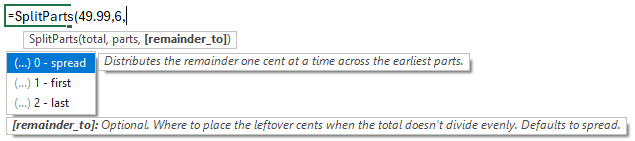
Everything else in Lambrary (the Browse window, sharing, import, export) exists to help you write that documentation and move it between workbooks and teammates.
Getting started
A first session, end to end. About five minutes.
1. Create a LAMBDA
If you already have named LAMBDAs in a workbook, skip ahead. Otherwise, make one: Formulas → Name Manager → New, give it a name like TaxOnAmount, and in Refers to enter a LAMBDA, for example =LAMBDA(amount, rate, amount * rate). Now =TaxOnAmount(100, 0.2) works in any cell. This is plain Excel; Lambrary doesn't change how you create LAMBDAs.
2. Document it
A brand-new LAMBDA has nothing to show yet, so document it before you go looking for hints. Open the Lambrary tab and click Browse LAMBDAs. You'll see every LAMBDA in the workbook with a summary of how much of it is documented. Each row also has an eye icon: click it to hide a LAMBDA you'd rather keep out of the way (a low-level helper, say) without deleting it. A hidden LAMBDA still works in formulas; it just drops out of the Name Manager and the autocomplete list until you click the icon again to show it.
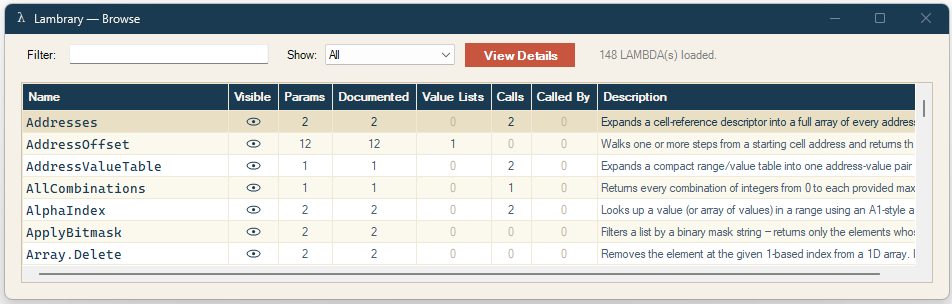
Click TaxOnAmount to open the detail editor, and fill in a description of what the function does, a note for each parameter, and, for any parameter with a fixed set of choices, an allowed-values list (each value can carry its own short note). You can also add an optional documentation link (a URL to fuller docs or a spec), and once it's set, Ctrl+click the LAMBDA's name in the Browse list to open it.
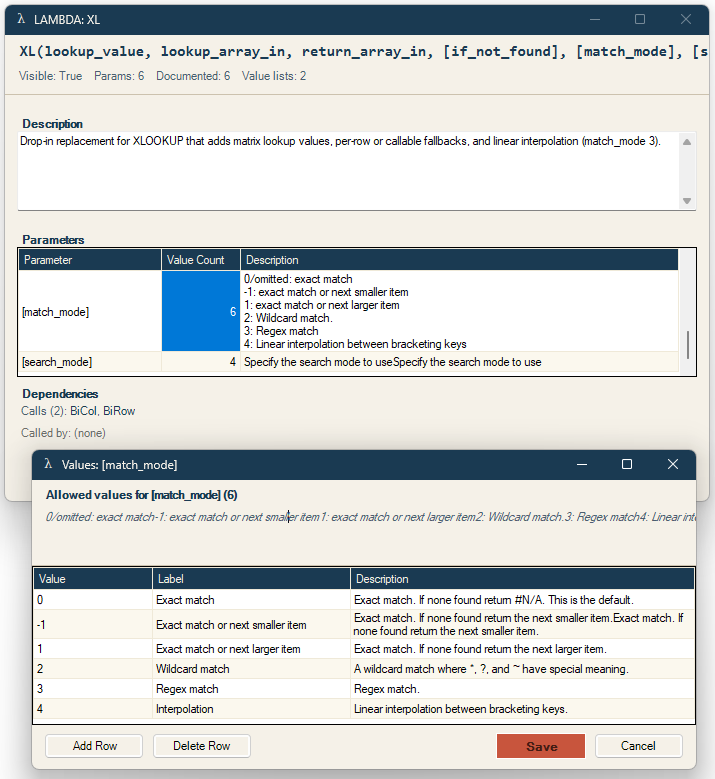
The detail view also lists the LAMBDA's dependencies (the functions it calls and the ones that call it), each name a link that opens that function's detail.
3. See the IntelliSense
Now go back to a cell and type =TaxOnAmount(. Pause for a moment and a tooltip appears beneath the formula: the signature, your description, and the note for the parameter you're on, highlighted and moving to the next as you type past each comma, exactly like a built-in function. Any parameter with an allowed-values list shows a dropdown you arrow through (like XLOOKUP's match_mode).
While editing, press F1 to toggle the parameter descriptions off and on. Handy when you already know the function and just want the bare signature back. The toggle key is configurable in Settings.
4. Save the workbook
Your documentation is stored inside the workbook, not in the add-in. Save the file and it persists; send the file to a colleague and the documentation goes with it. That's the whole model; the next section explains how it works.
How your documentation is stored
This is worth understanding, because it explains a lot of Lambrary's behaviour.
When you document a LAMBDA called Foo, Lambrary writes the description, parameter notes, and value lists into a hidden defined name called Foo__doc, stored in the same workbook. The convention is simple: a Name ending in __doc is documentation, not data. Lambrary reads those Names when it builds tooltips and exports; Excel ignores them in calculation.
Three consequences follow from storing it this way:
- It travels with the file. Open the workbook on another machine, sync it to OneDrive, or email it to a colleague, and the documentation comes along. It's part of the file, not something installed separately.
- It's invisible and harmless without Lambrary. The
__docNames are hidden and text-only. A recipient who doesn't have the add-in sees nothing unusual and nothing breaks. - Removal is per-workbook. There's no global "forget everything" switch, because nothing is stored globally. To strip the documentation from a file, use Remove Docs (below) on that workbook.
You normally never touch these Names directly (the Browse editor manages them), but the Doc Names ribbon group lets you hide, show, or remove them when you need to.
Renaming and deleting LAMBDAs
Because the documentation is tied to a LAMBDA's name, Lambrary keeps the two in step when a function is renamed or removed, whether you do it inside Lambrary or in Excel itself.
From inside Lambrary
Right-click a function in the Browse window, or use the buttons in its detail view, to rename or delete it:
- Rename carries the documentation to the new name, and Excel updates every formula that calls the function automatically, so a rename leaves nothing behind and breaks nothing.
- Delete removes the function and its documentation together. If other functions still call the one you're deleting, Lambrary warns you first.
When you rename in Excel's Name Manager
If you rename a function outside Lambrary, in Excel's Name Manager, Lambrary re-attaches its documentation to the new name automatically the next time it scans the workbook. Renaming no longer leaves the documentation stranded under the old name. Anything Lambrary can't match automatically (for example, documentation written before this feature existed) is offered for you to re-assign to the right function or remove.
Sharing a LAMBDA via a link
To hand someone a single function without sending a whole file, share it as a link. In the Browse window, or a LAMBDA's detail view, click Share to get a lambrary.com/s/… link.
The link carries the function, its documentation, and any helper LAMBDAs it depends on. On its own it opens a readable documentation page anyone can view, and it works for 30 days. Sharing uploads the selected LAMBDA(s) to lambrary.com so others can import them; nothing else is sent.
Importing LAMBDAs
There are several ways to bring LAMBDAs, or just their documentation, into a workbook. They share the same engine: dependencies are pulled in automatically, and nothing is ever overwritten without a prompt.
From a shared link
The Import from link button on the Lambrary tab brings a shared library (the kind a lambrary.com/s/… link points to) straight into your workbook. You confirm before anything is added, existing LAMBDAs are never overwritten without asking, and the imported function opens for review.
From a Lambrary library file
The Import Library button reads a library file (the JSON that Export Docs writes) and copies the LAMBDAs you choose (formulas and documentation together) into the current workbook. Before it imports, it checks the file and reports anything that will be skipped or lose detail, which catches the common mistakes in AI-generated library files. If a file needs fixing, a Copy report for your AI button puts a ready-made correction request on the clipboard.
From another open workbook or add-in
Inside the Browse LAMBDAs window, the Import… button copies LAMBDAs from another open workbook or loaded add-in, with no file needed. Pick the source, narrow the list with a text filter (or hide the ones you already have), and choose whether to bring in formulas, documentation, or both.
From the Advanced Formula Environment
If you author your LAMBDAs in the Advanced Formula Environment (the Excel Labs formula editor, where many people write LAMBDAs), you can document them right there and Lambrary imports those docs for you, with no button to press. Put a JSDoc-style comment above each definition: a first line for the description, then @param lines for the parameters, optional @value lines for allowed values, and an optional @url link. For example:
/**
 * Splits a total into equal cent-rounded parts; leftover cents go where remainder_to says.
 *
 * @param total         the amount to divide
 * @param parts         how many equal parts
 * @param remainder_to  where leftover cents go (default: spread)
 *     @value 0 = spread : one cent at a time across the earliest parts
 *     @value 1 = first  : all leftover on the first part
 *     @value 2 = last   : all leftover on the last part
 */
SplitParts = LAMBDA(total, parts, [remainder_to], total);
When you open the workbook, Lambrary reads those comments and writes them into the __doc Names, using the same annotation grammar the Browse editor uses, so what you write in AFE is what you'd see in Browse. If you've also edited that LAMBDA's documentation by hand in Browse, Lambrary won't overwrite your edits without asking.
Exporting a library to a file
A documented set of LAMBDAs is a library worth reusing. Export Docs writes it out as a single file documenting every LAMBDA in the workbook: signatures, descriptions, parameters, allowed values, and the call graph (what calls what). A Save dialog offers two formats:
- HTML: a brand-styled, self-contained page you can email or host. No external CSS or scripts. This is the one to send someone who just wants to read the docs.
- Lambrary library (JSON): carries the formulas as well as the docs, so it can be imported into another workbook. This is the format for sharing functions, not just reading about them.
After a JSON export, Lambrary offers to copy a documentation prompt together with the file, so one paste into an AI assistant starts the documentation with the current formatting rules. Documenting a library with AI walks through that roundtrip.
The ribbon at a glance
Everything above lives on the Lambrary tab. In brief:
- Browse: Browse LAMBDAs (the audit and documentation window, where you also rename, delete, and share), Export Docs, Import Library, Import from link.
- Doc Names: Hide / Show the hidden
__docNames, or Remove Docs to delete the documentation from this workbook (asks first, defaults to No, takes effect on save, can't be undone). - Diagnostics: Verbose Logging and Open Log Folder, for bug reports.
- Settings: choose which IntelliSense overlays appear, and toggle Check for Updates.
- Help: a short in-product guide with a link to this site, and About (the version to quote in bug reports).
Every button also has a hover tip in Excel that says what it does.
Settings and updates
Settings lets you turn individual IntelliSense overlays on or off (the function description, the parameter description, the value-list dropdown, per-value notes) if you want a quieter tooltip. It's also where you set the toggle key that shows and hides the parameter description mid-edit (F1 by default). Changes apply immediately and persist across sessions.
Check for Updates, when on, has Lambrary look at the website about once a day for a newer build and show an Update button on the tab if one exists. Apart from sharing and importing a link (which you start, and which send only the selected LAMBDA(s)), this update check is the only thing that makes a network call: a plain fetch of a small file, with no usage data sent. Turn it off to keep the add-in fully offline.
Troubleshooting and reporting bugs
If something misbehaves, the diagnostic log is the fastest way to get it fixed.
- Settings → turn on Verbose Logging, reproduce the problem, then turn it back off.
- Diagnostics → Open Log Folder and attach the log to an email.
- Send it to support@lambrary.com with a sentence or two about what you were doing, your Excel version (File → Account → About Excel), and the Lambrary version from Help → About.
The log records Lambrary's own activity (load, scans, ribbon clicks, dialogs, and the type of any error) as counts and structural flags only. It does not contain your LAMBDA names, parameter names, formula text, descriptions, or values. If a bug can only be reproduced with proprietary content, I'll ask for it explicitly. See the install guide for the full reporting template.