For people who write their own LAMBDAs

IntelliSense for the
named LAMBDAs you write

Lambrary gives the named LAMBDA functions you write the same IntelliSense Excel reserves for its built-ins: argument hints, descriptions, and allowed-value dropdowns as you type. Then browse, document, share, and export your library. Currently in closed beta.

You'll get a confirmation email to opt in. No spam, just occasional updates while the product takes shape.

Almost there. Check your inbox.
I've sent a confirmation email. Click the link inside to finish signing up. (Check spam if it doesn't appear within a minute.)

Not ready to sign up? Read the guide to see what it does.
How it works

Three steps, all inside Excel.

1

Document a LAMBDA

Open Browse LAMBDAs, pick a function, and write a description, parameter notes, and any allowed values. The documentation lives inside the workbook.

2

See IntelliSense as you type

Type =YourFunc( and a tooltip shows the signature, the description, and a note for the parameter you're on, just like a built-in function.

3

Share or export

Send a documented LAMBDA as a link, or export the whole library as a readable page or a re-importable file.

In-cell IntelliSense for your own LAMBDAs

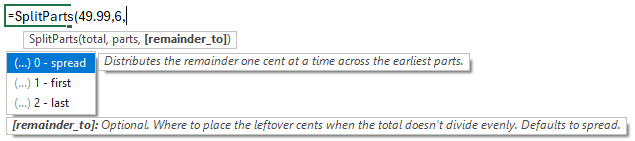
Pause after the opening bracket and a tooltip shows the signature, a description of what the function does, and a note for the parameter you're on, moving to the next as you type past each comma. Parameters with a fixed set of choices get a dropdown, the way XLOOKUP's match_mode does.

Lambrary IntelliSense in a cell: a LAMBDA signature with the active argument bold, its description below, and a value-list dropdown with a per-value note.

Browse and document your library

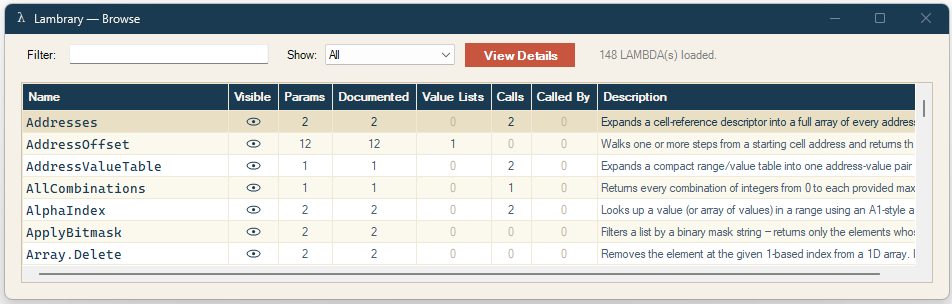
The Browse window is an audit view of every LAMBDA in the workbook, showing how much of each is documented. Click a function to write its description, per-parameter notes, and value lists, and to see what it calls and what calls it.

The Browse LAMBDAs dialog: a table of every LAMBDA in the workbook with documentation counts.

Documentation stored in the workbook

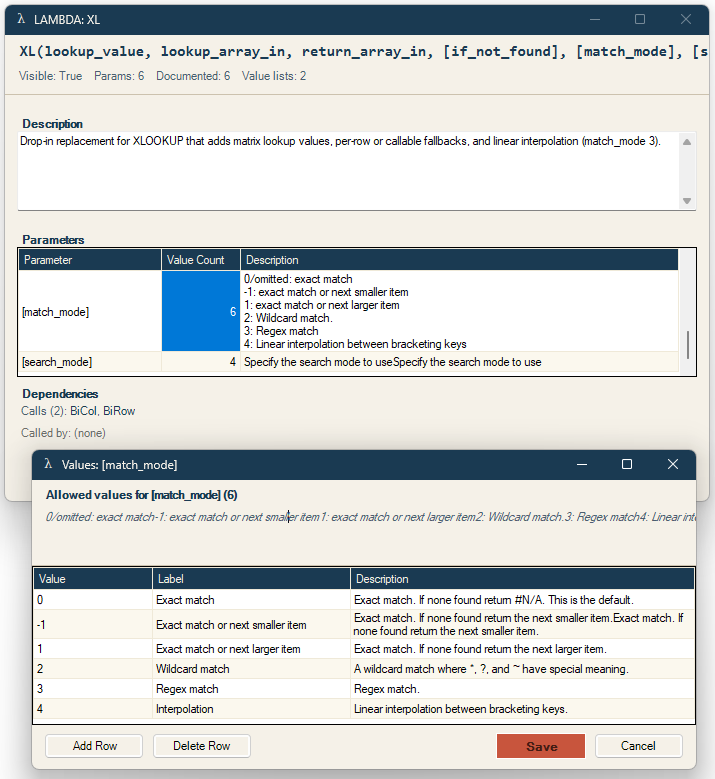
What you write is kept inside the file itself, as hidden defined names, so it travels with the workbook. Email it, sync it to OneDrive, or hand it to a colleague, and the same help is there, whether or not they have Lambrary installed.

The LAMBDA detail view: an editable description, per-parameter notes, and value lists.

Share a LAMBDA via a link

Click Share to get a lambrary.com/s/… link that carries the function, its documentation, and any helper LAMBDAs it depends on. The link opens a readable page on its own and lets others import the functions into their own workbook.

Lambrary IntelliSense overlay, the documentation that a shared link carries with a function.

Why I built this

I maintain a large library of named LAMBDA functions for competitive Excel esports, and I kept hitting the same wall. Excel gives its built-in functions rich IntelliSense: argument hints, descriptions, the signature as you type. Write your own LAMBDA and you get none of it. Native functions get all of it, so why not the custom functions you write yourself?

So I built it for myself. When I demoed it to friends in the Excel esports community, the feedback was overwhelmingly positive, so I turned it into an add-in that everyone could use.

Today it's an authoring tool: IntelliSense, documentation, sharing, and export for the LAMBDAs in a workbook. The longer plan is to grow it into a way to manage, share, and distribute LAMBDA libraries across a team. It's a Windows add-in built on Excel-DNA.

Questions?

Which Excel versions are supported, where your documentation lives, what leaves your computer, and what it costs. The FAQ covers it.

Read the FAQ

Acknowledgments

Lambrary is built on Excel-DNA, the open-source toolkit that makes native Excel add-ins in .NET possible. None of this exists without it.

Thank you to the testers who put early builds through their paces and sent the feedback that shaped them: Filip Krerowicz, Thomas Edmunds, Vincent Hardwick, and Jon Wittwer.

And a special thank you to Harry Gross for his advice along the way. I came to this as a complete novice at software, and his general pointers were very helpful in steering me toward sounder architecture and away from the worst beginner mistakes.